New article
Recently updated
Using Ideagen Boards

Who is this article for?
Product and Implementation project teams
Access to the User Acceptance Testing (UAT) or Test area is required.
1. Access the Create New Menu
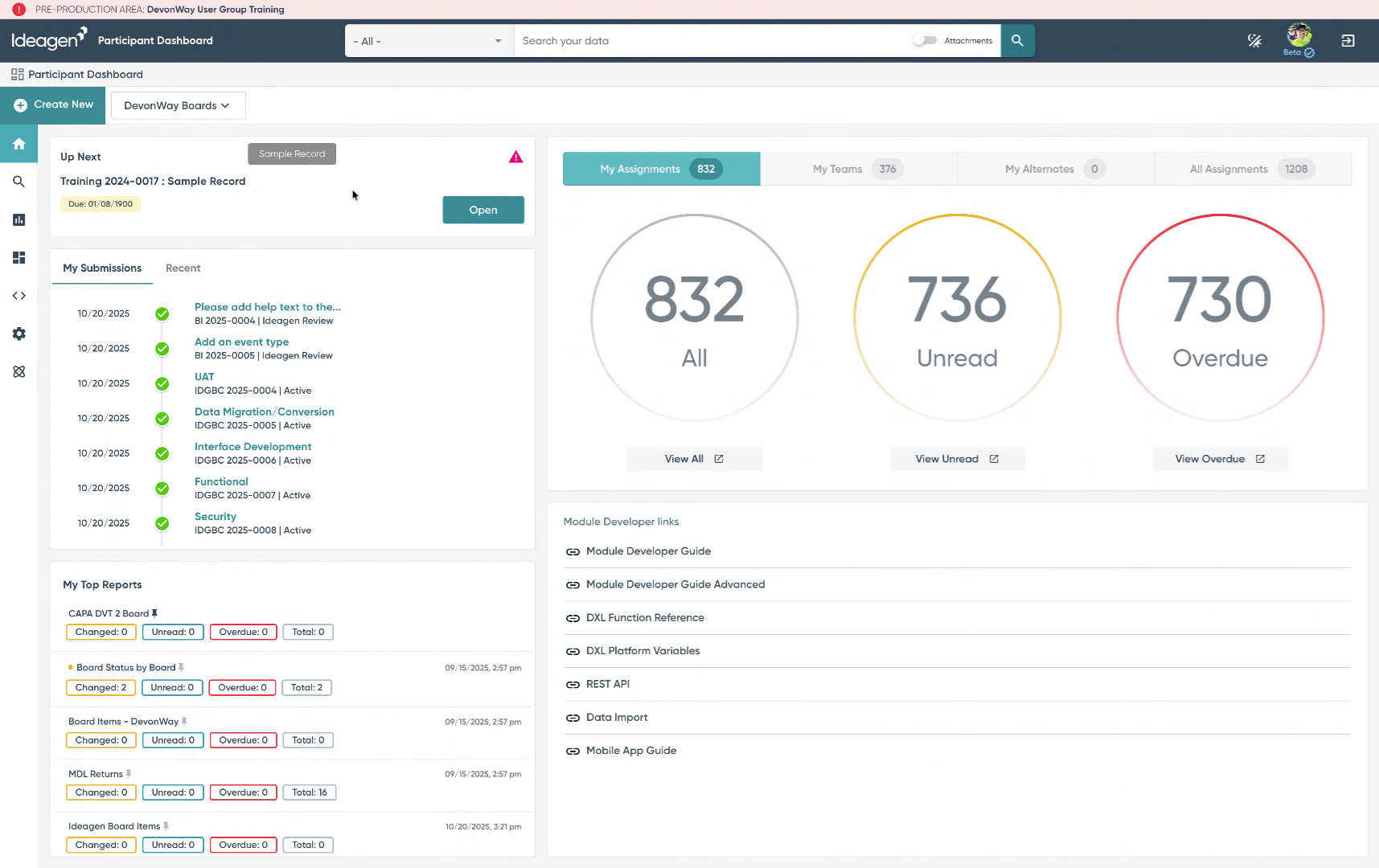
2. Check Existing Shortcuts
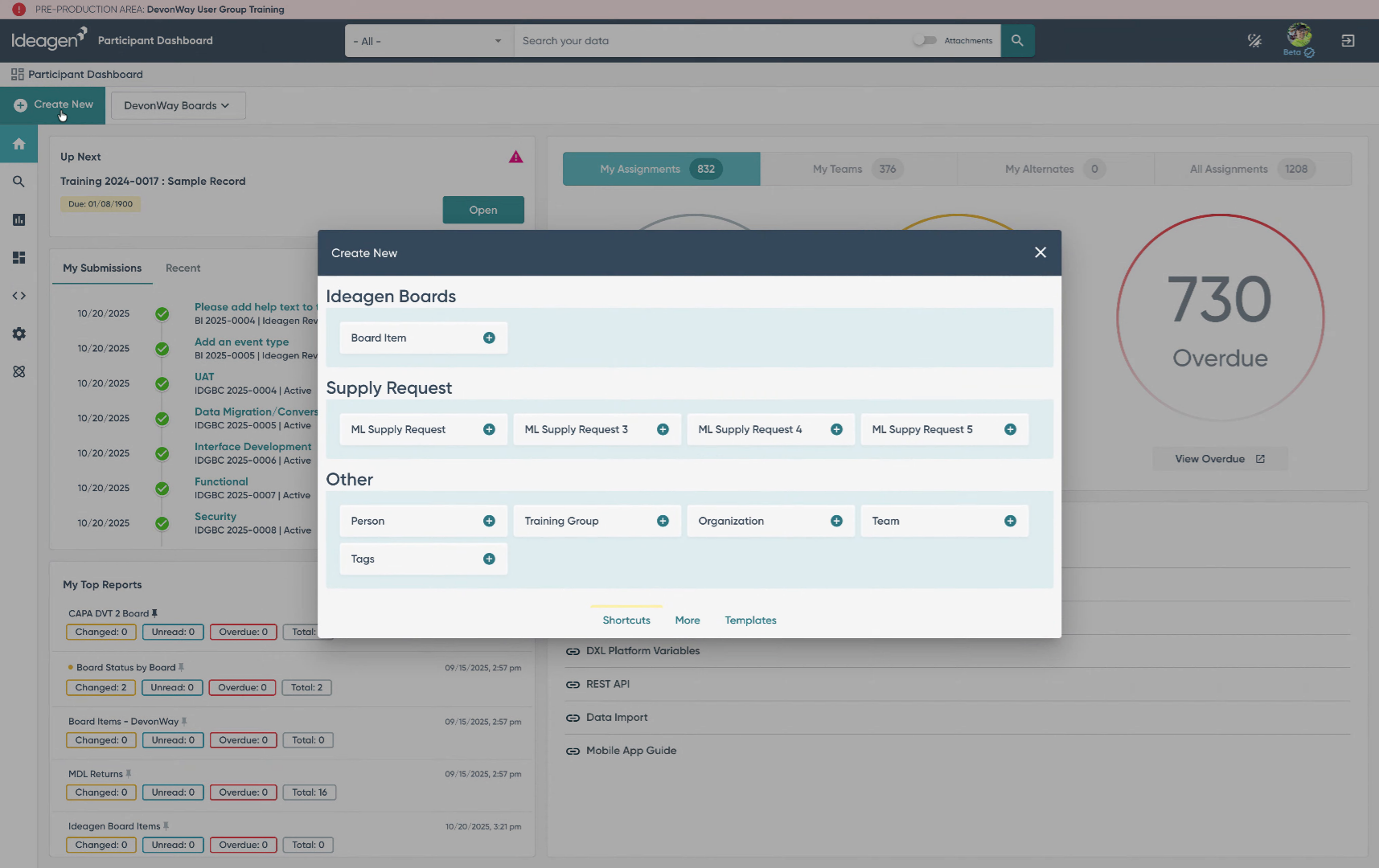
3. Open Board Items from the "More" Menu
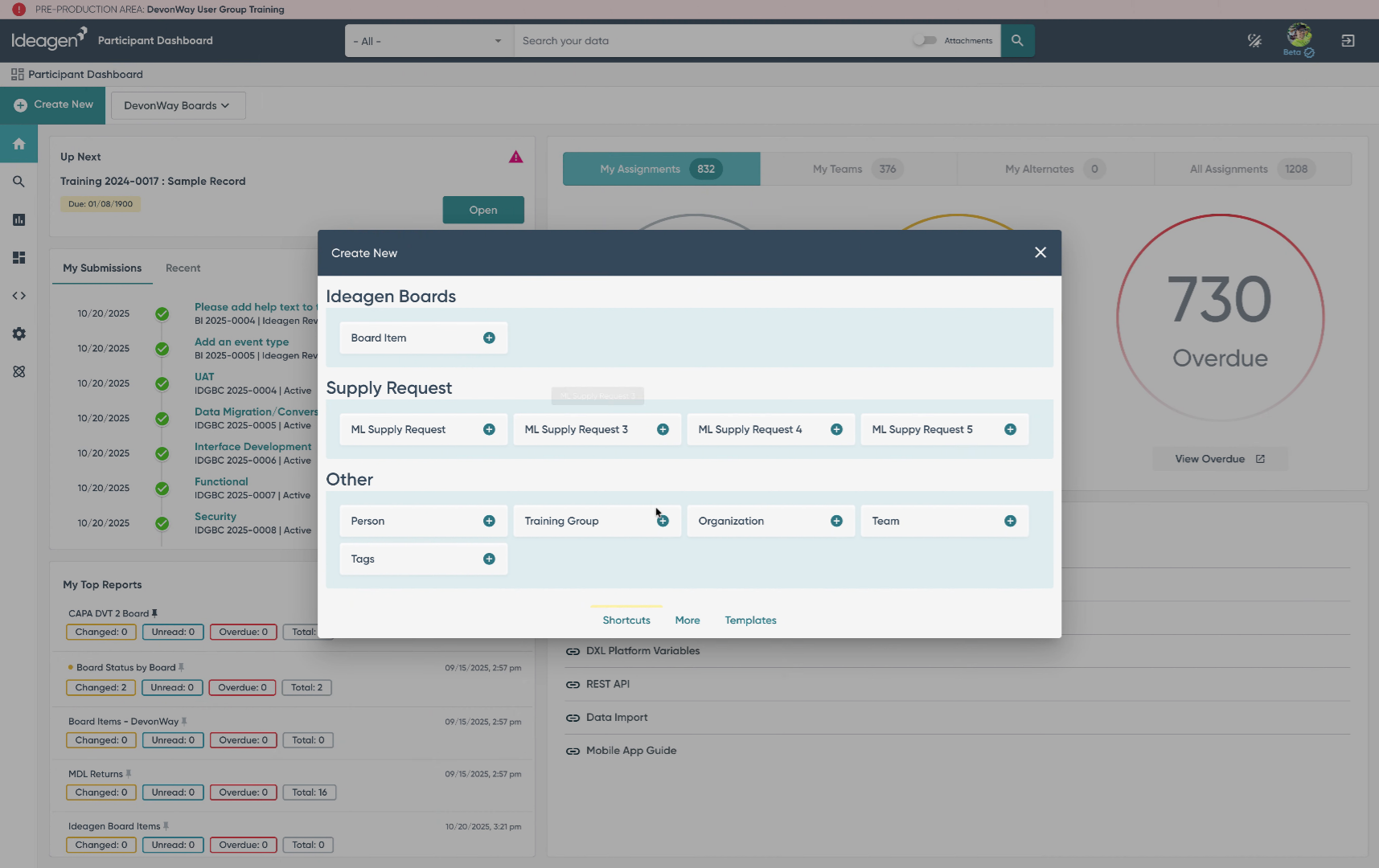
4. Select Target Board
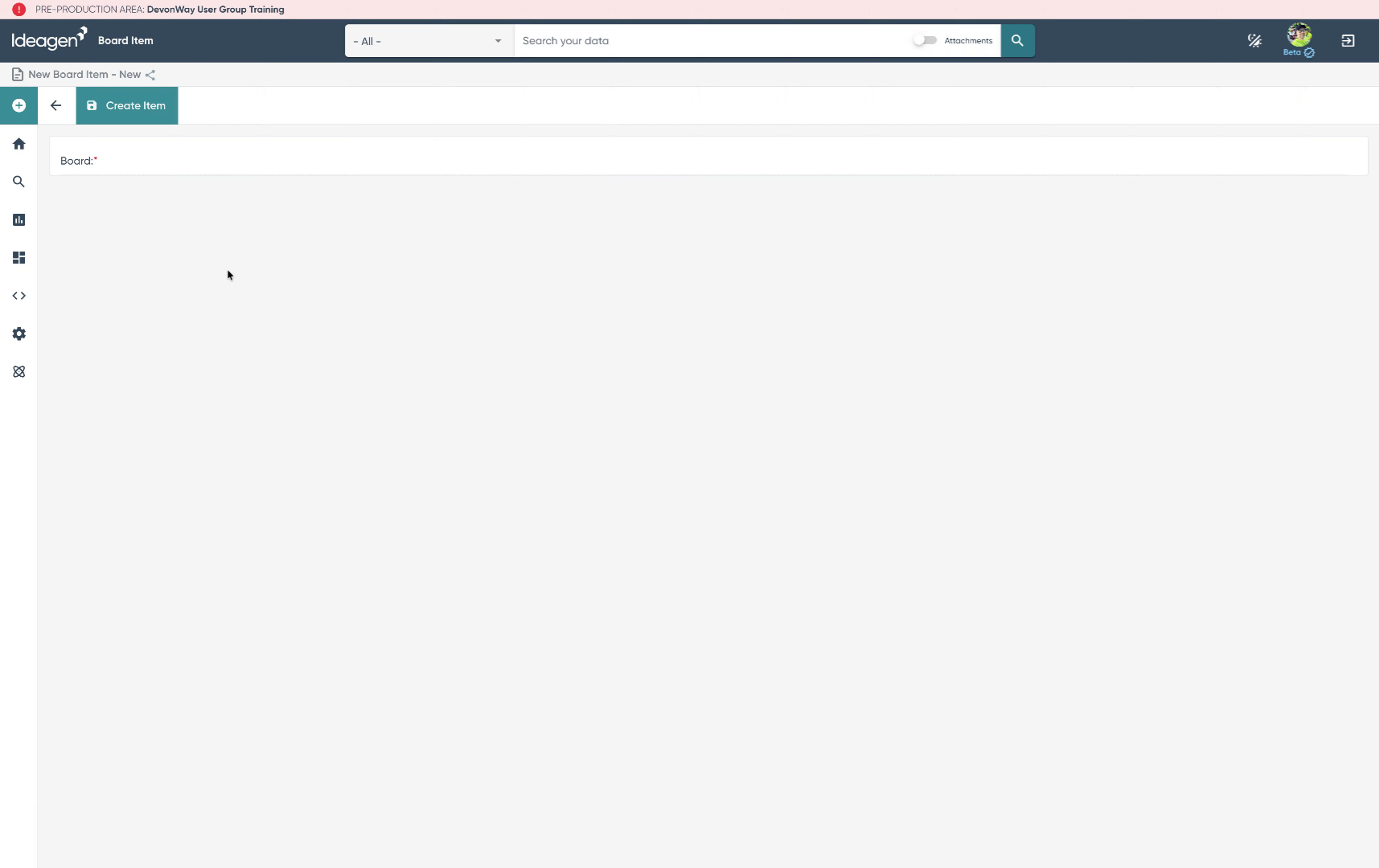
5. Boards are organized by your Implementation Team
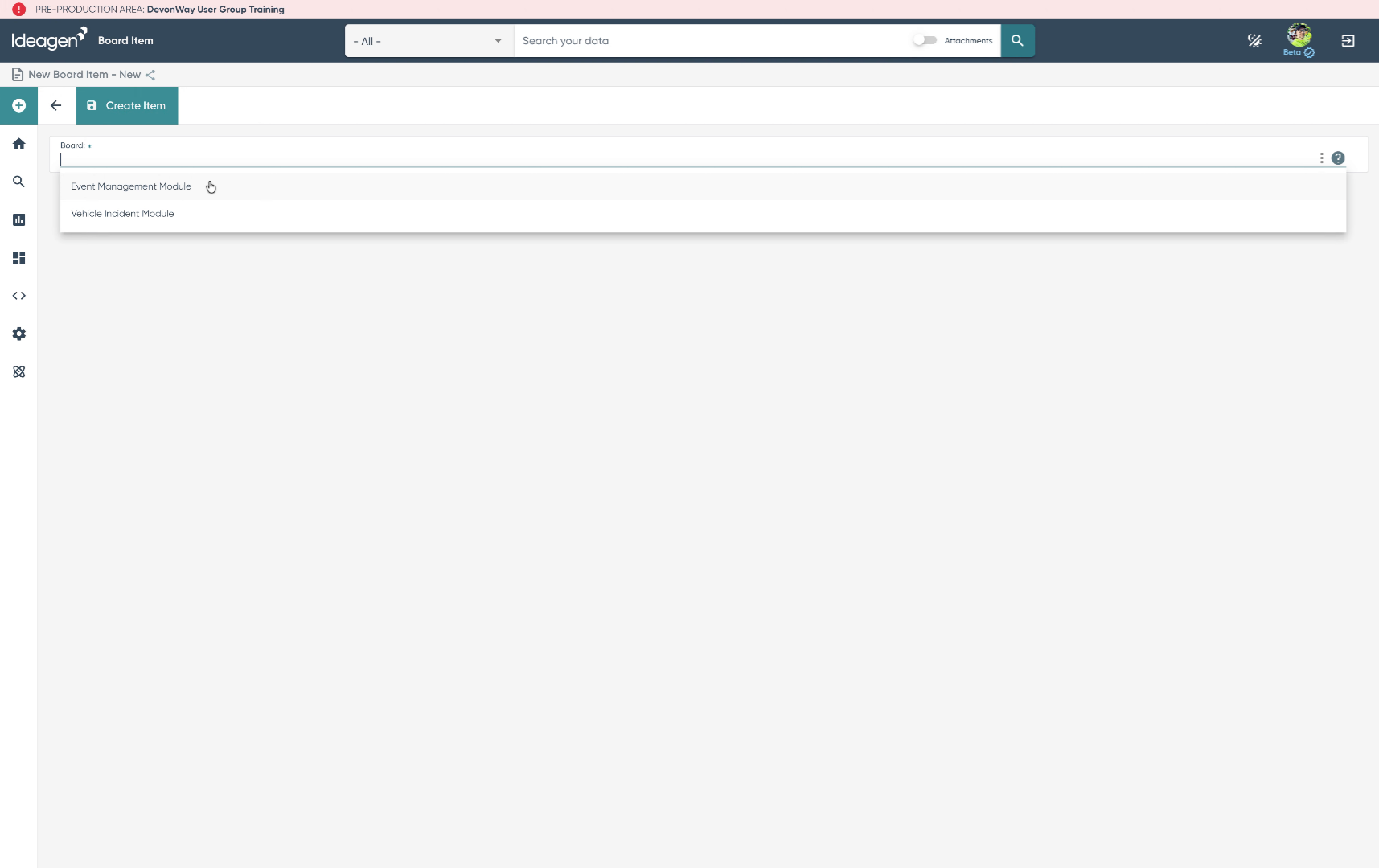
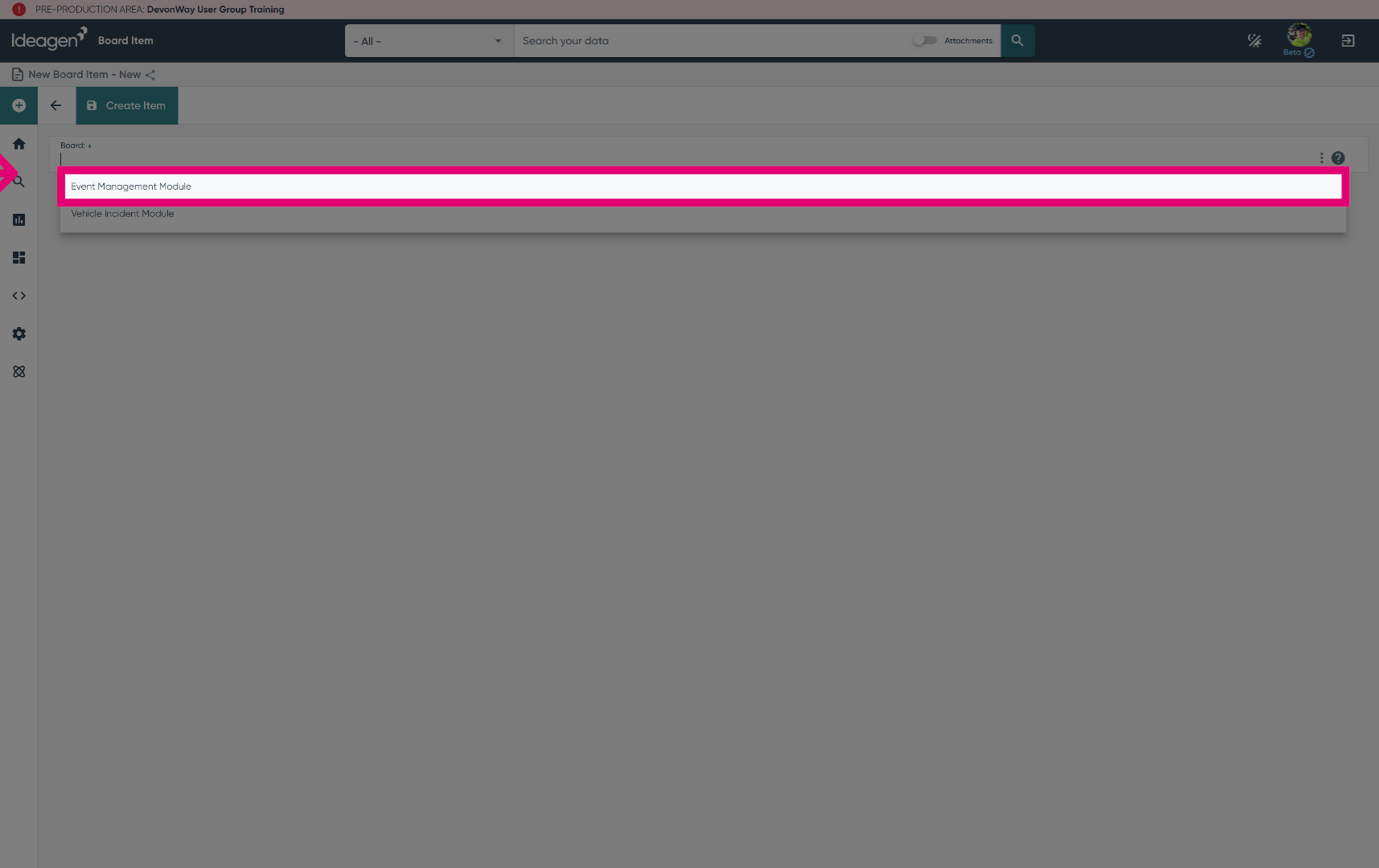
6. Choose a board
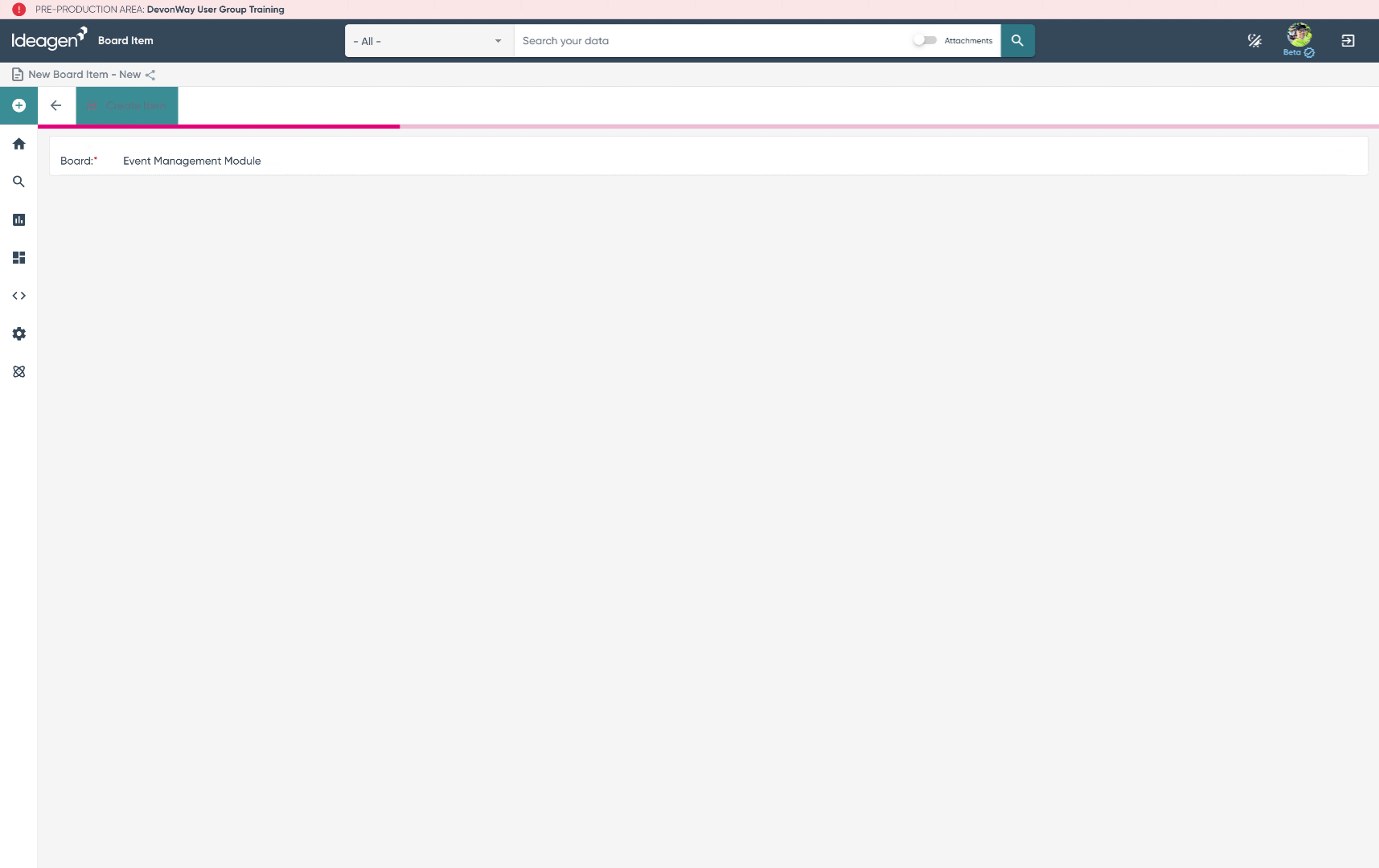
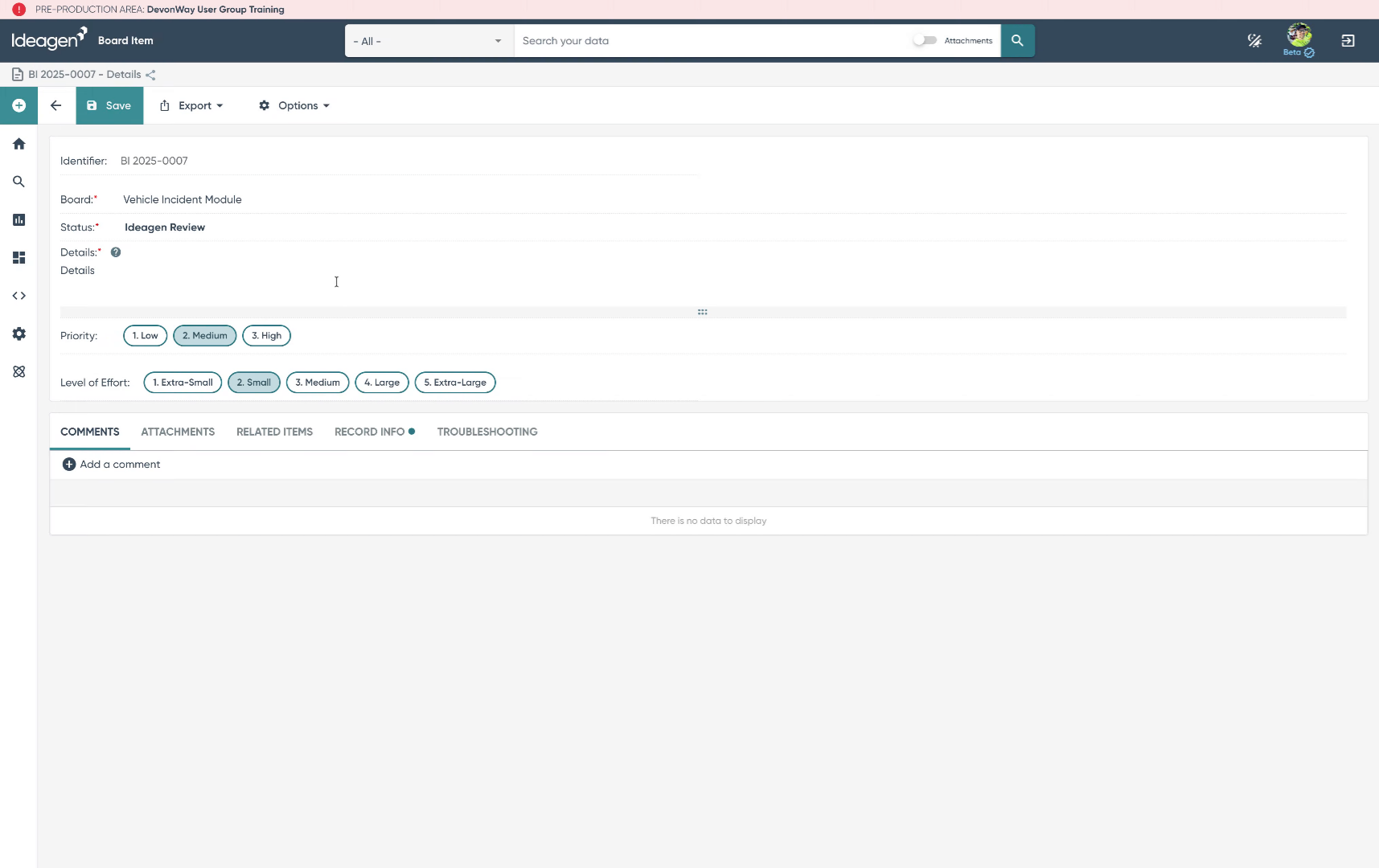
7. Review Auto-Populated Status
8. Fill Details Field

9. Enter any Required Details
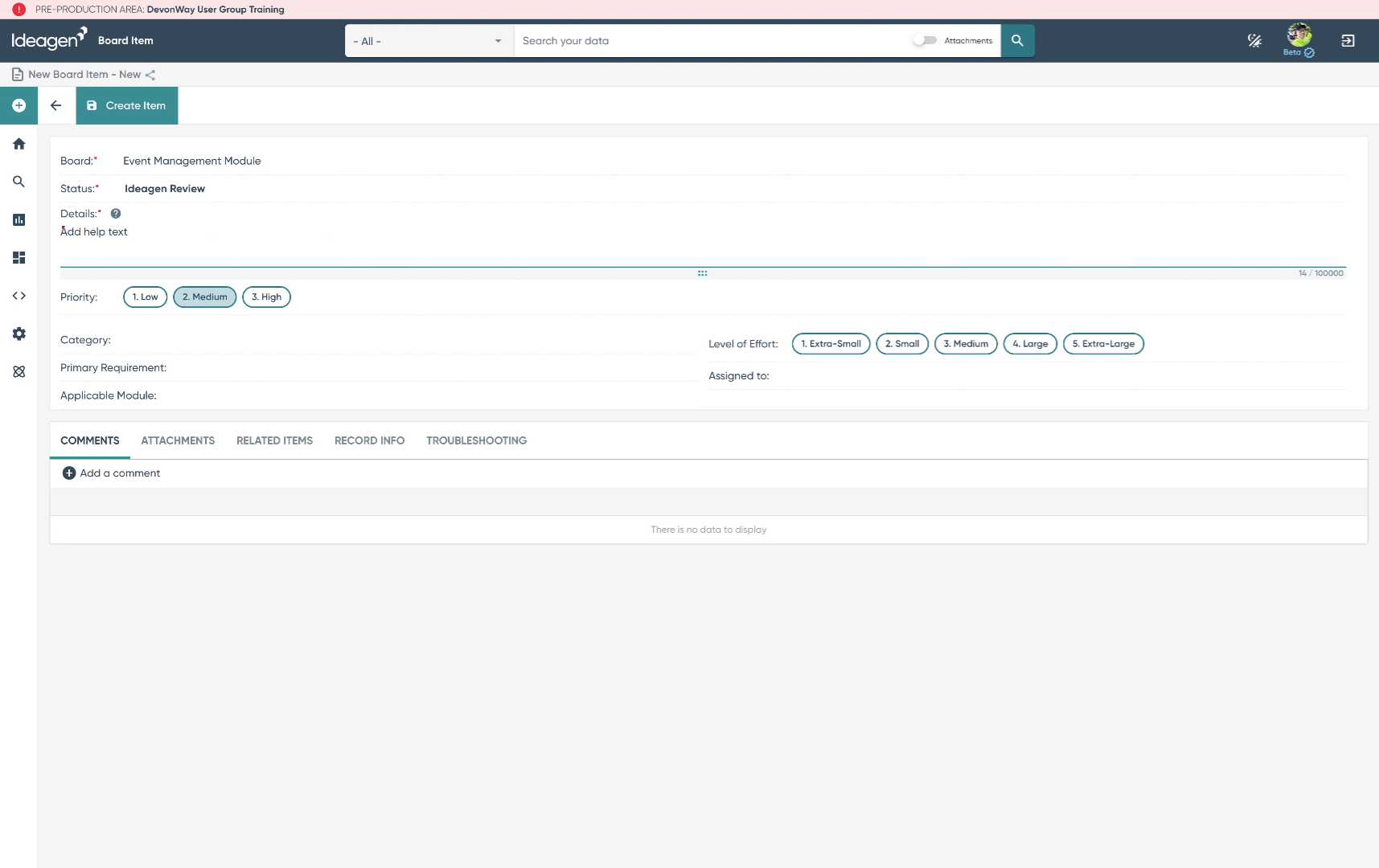
10. Open Category Selection
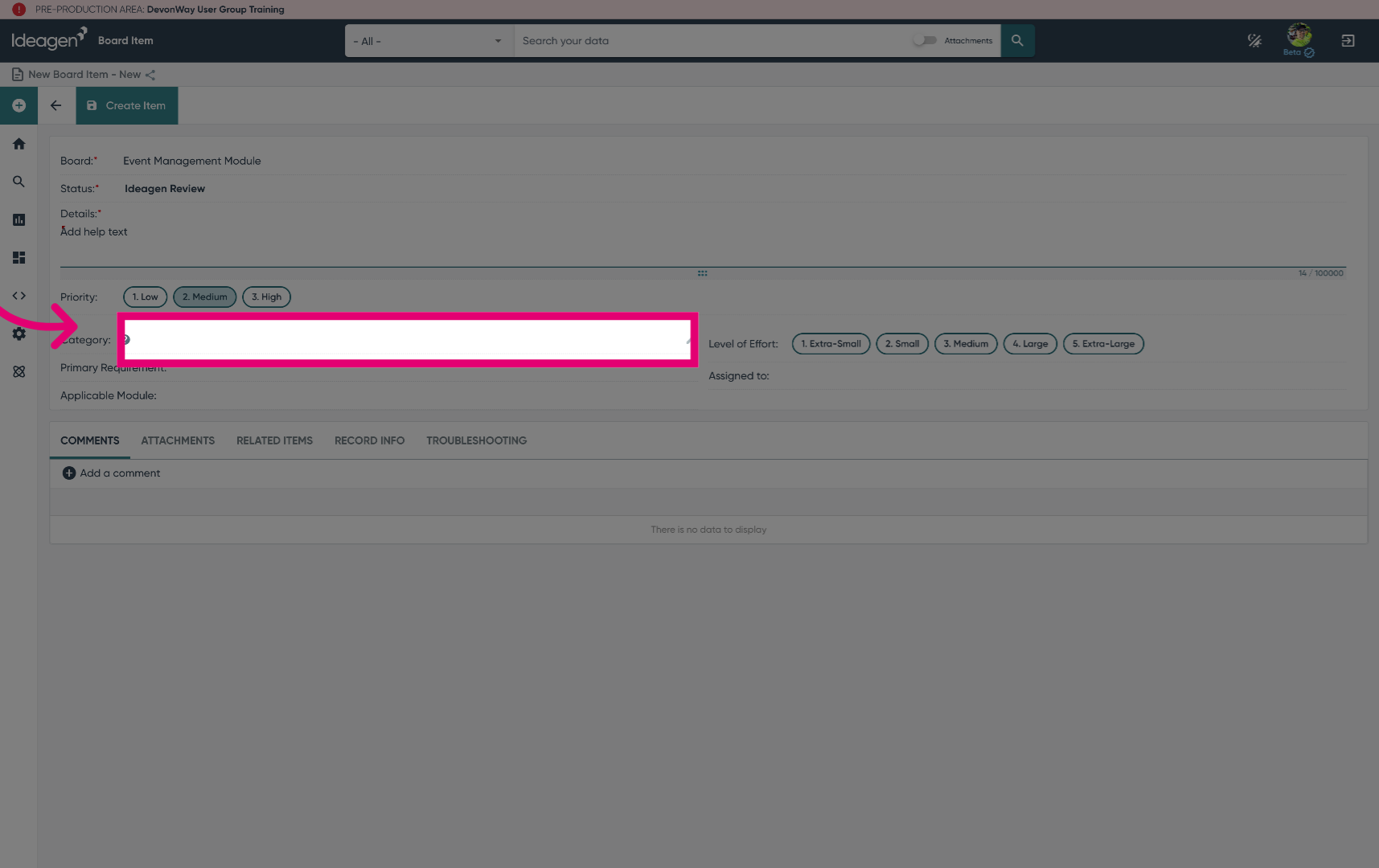
11. Assign an item Category
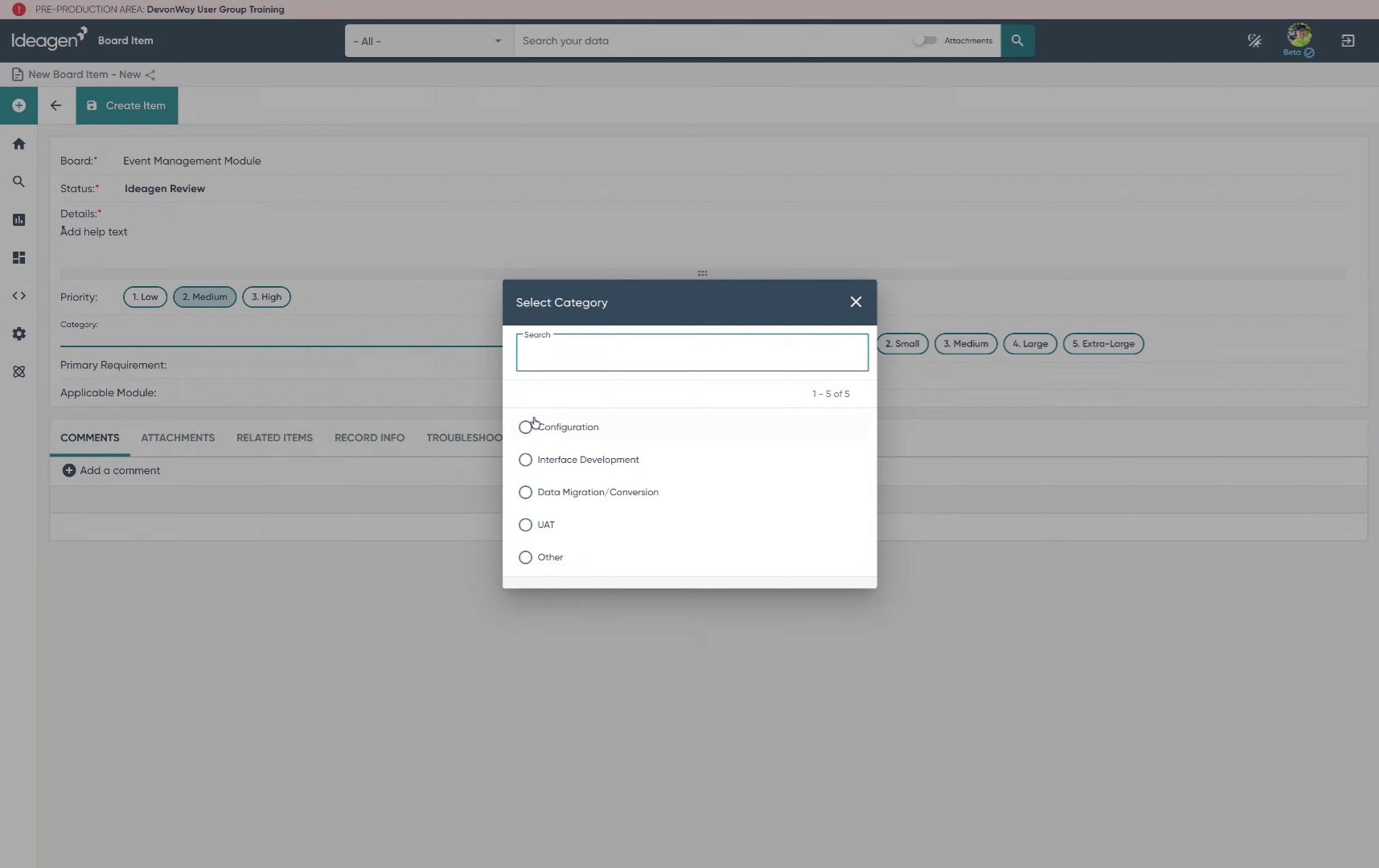
12. Select a Category
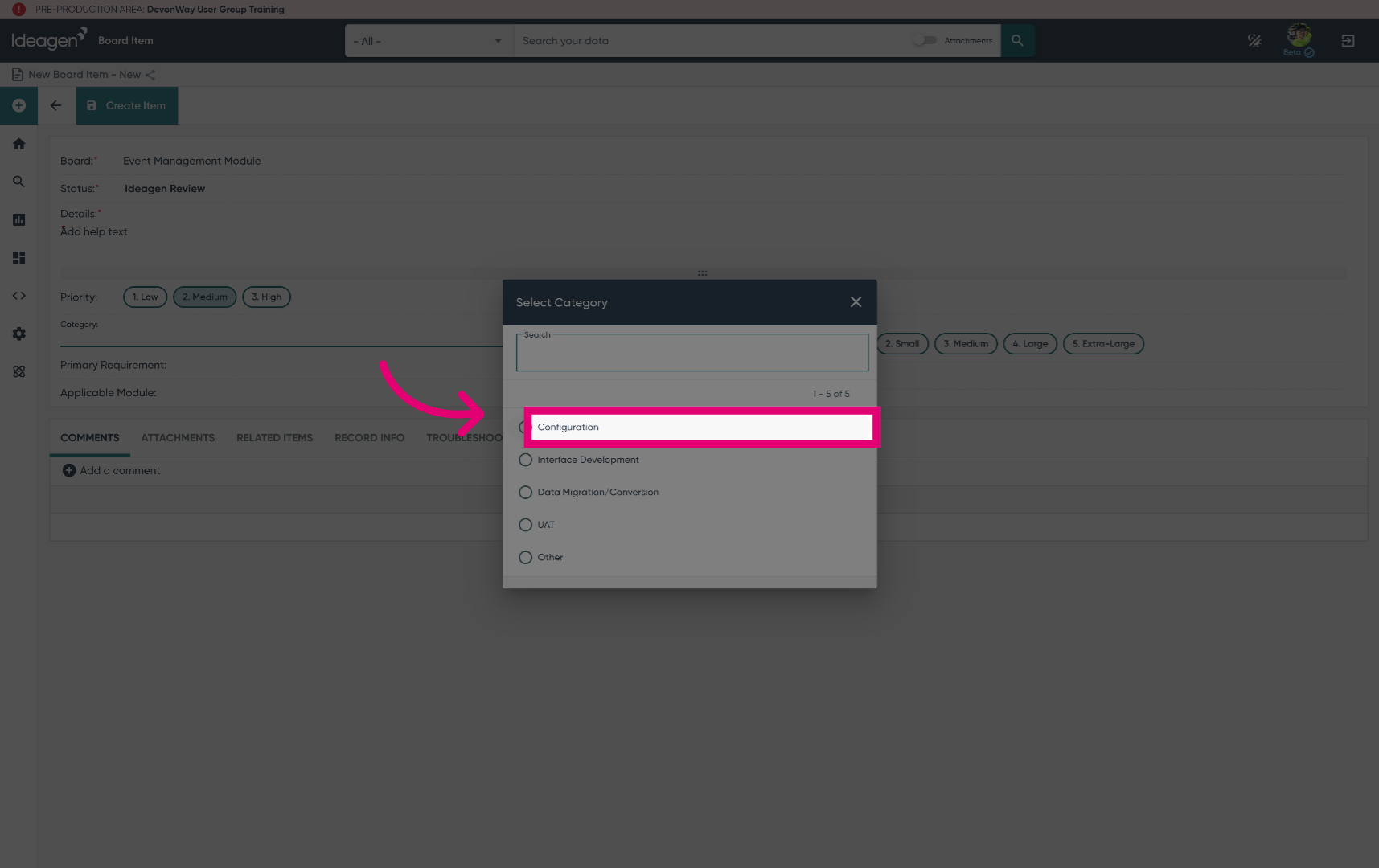
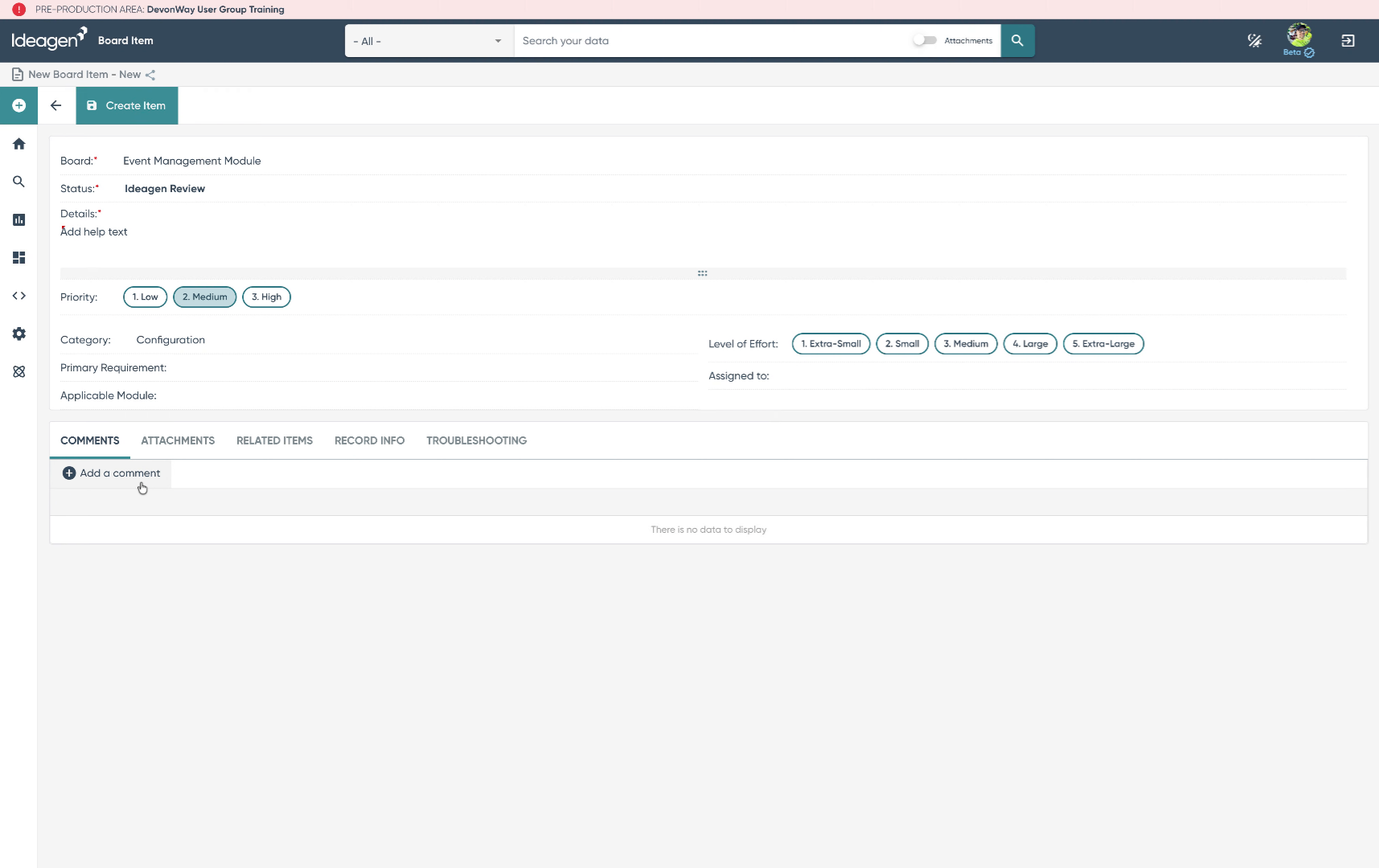
13. Add Comments to Board Items
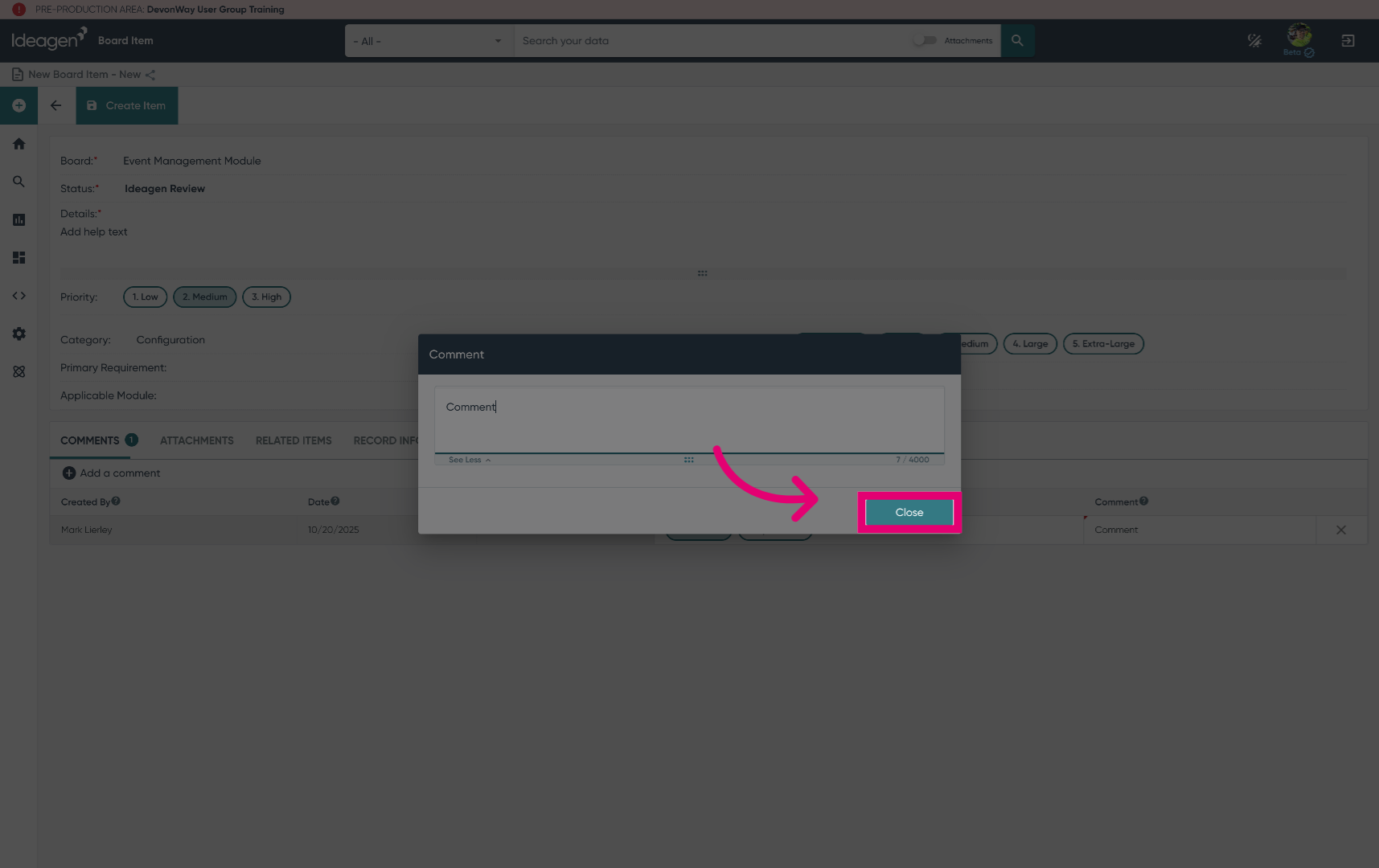
14. Close Comment Section
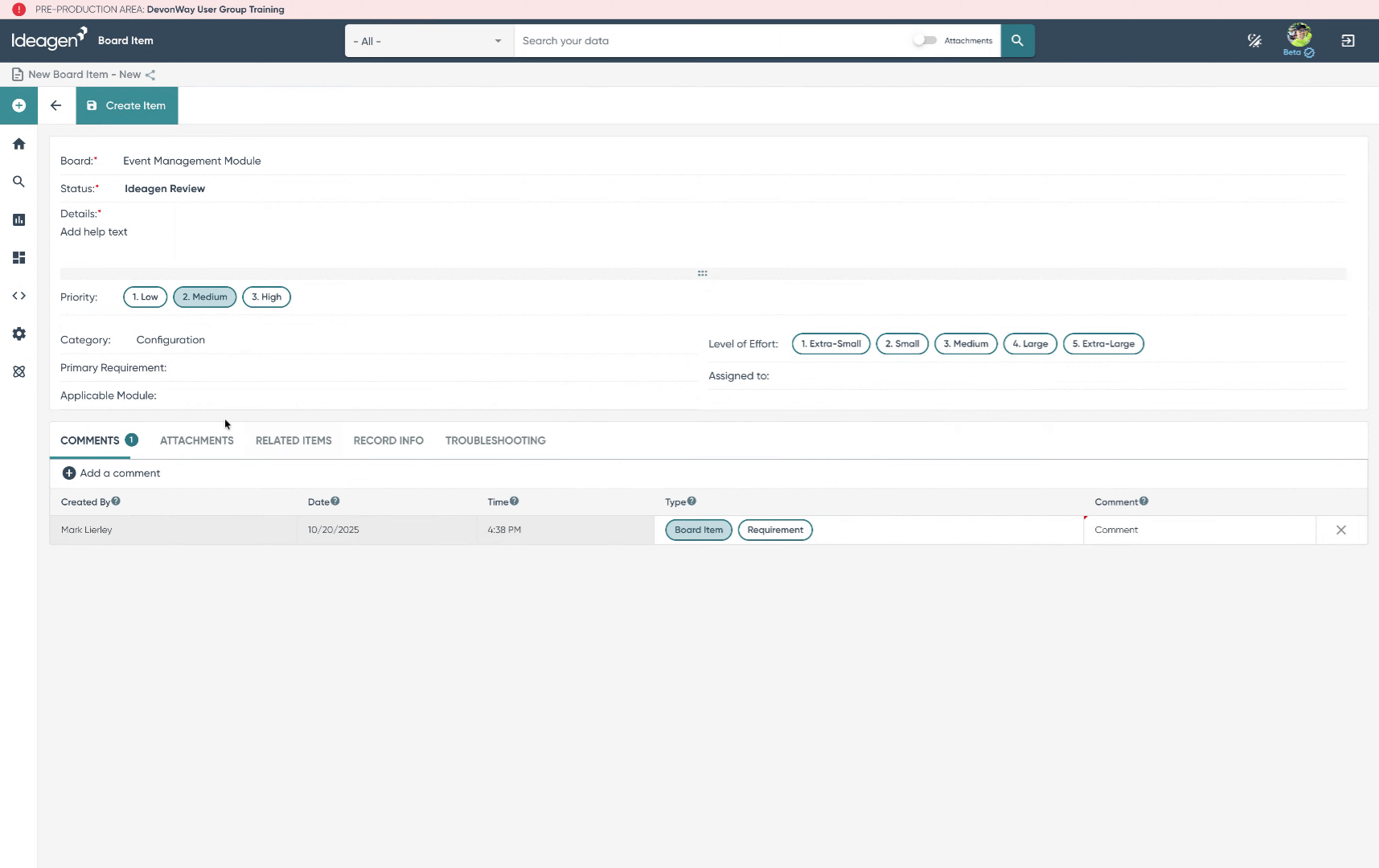
15. Include Attachments and Save
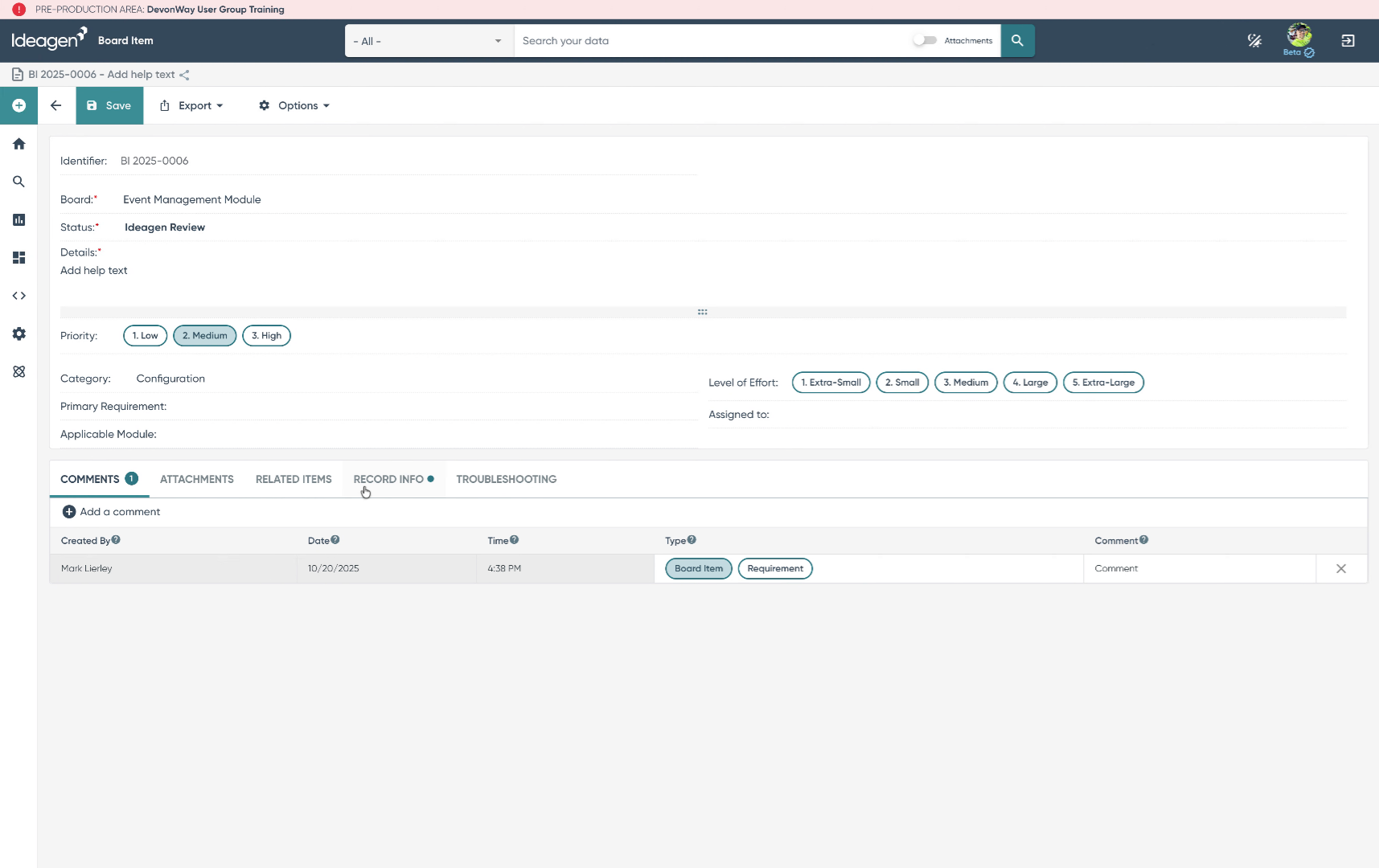
16. View Record Information
17. Add Additional Board Item
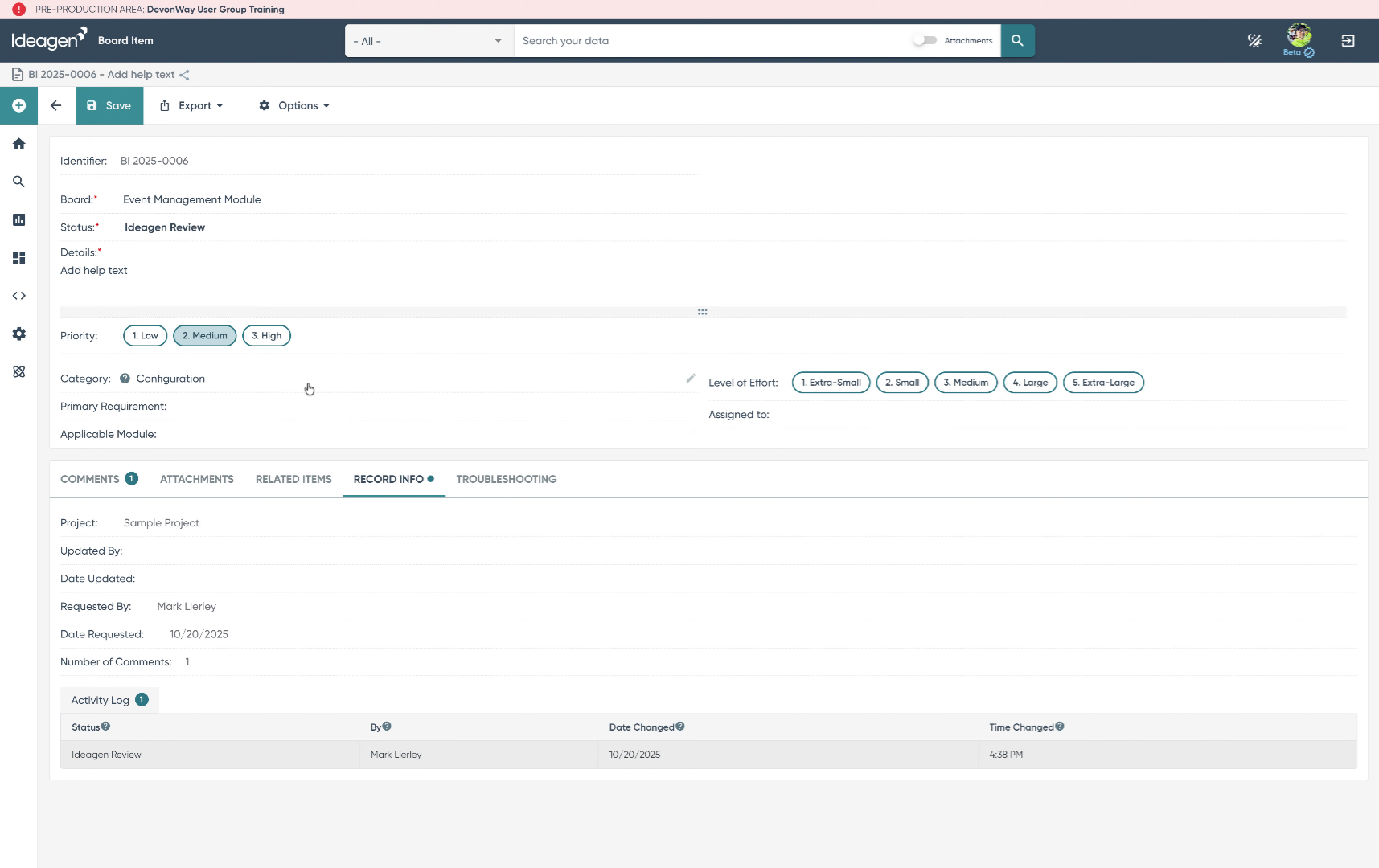
18. Choose Different Board
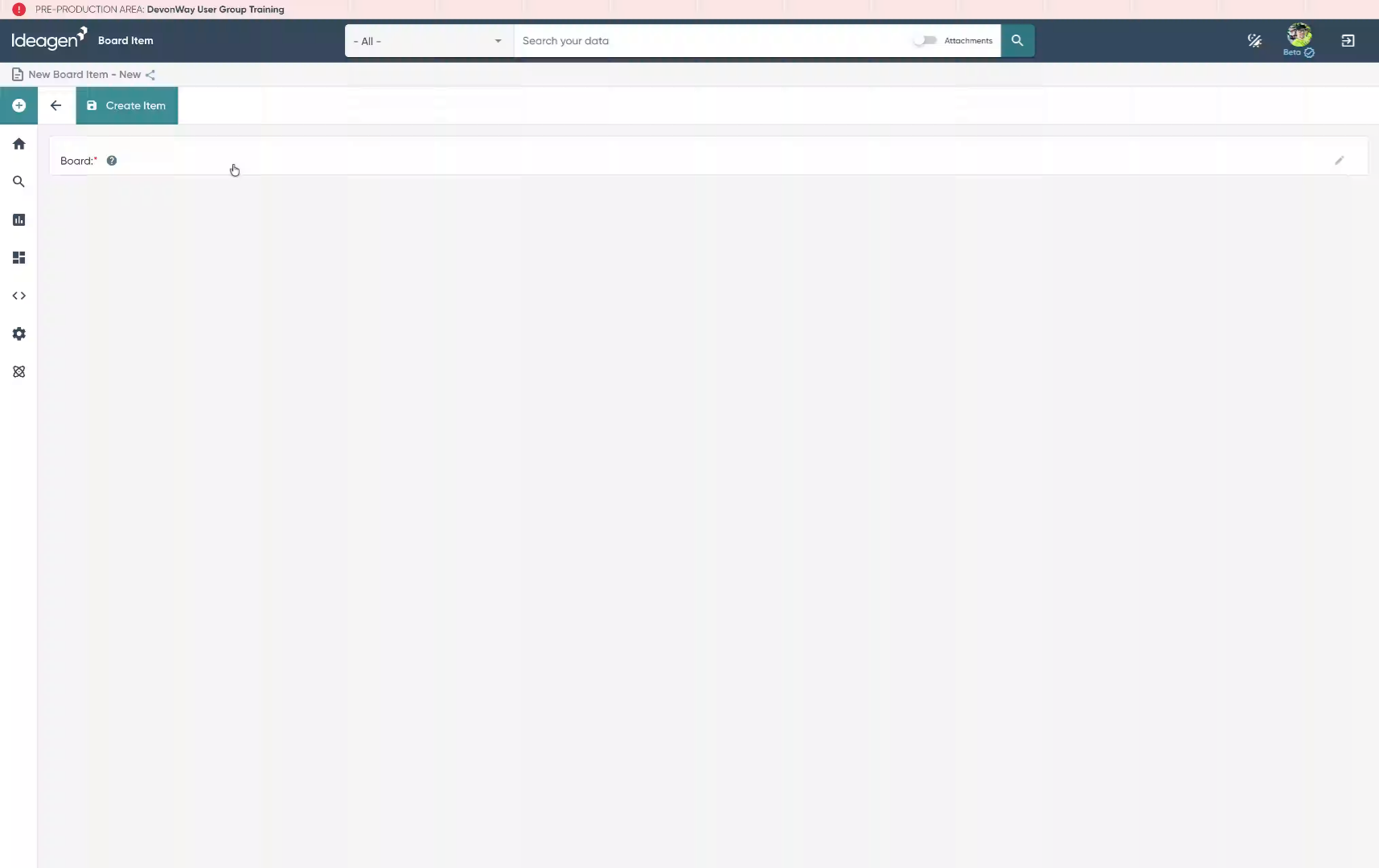
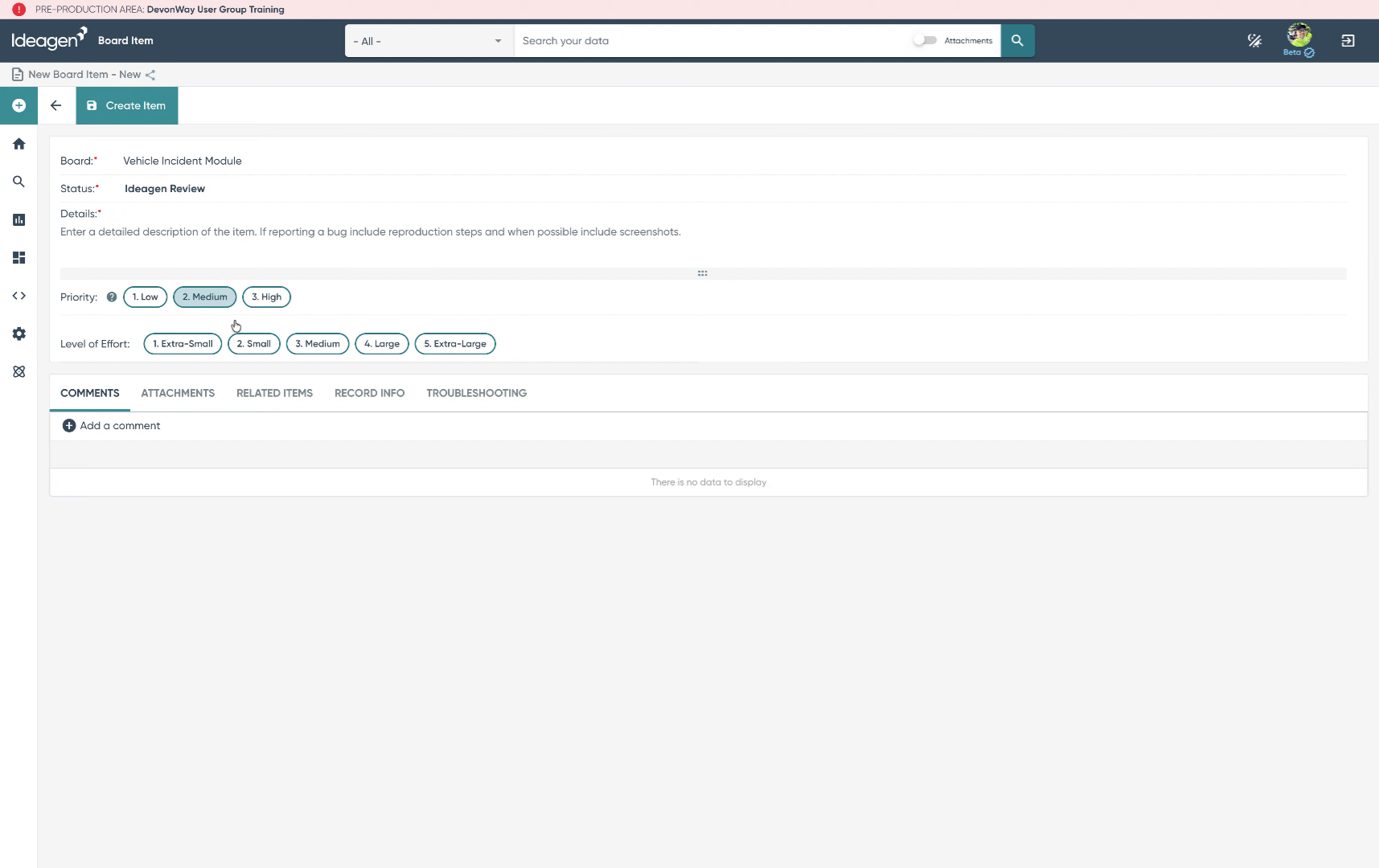
19. Recognize Board Differences
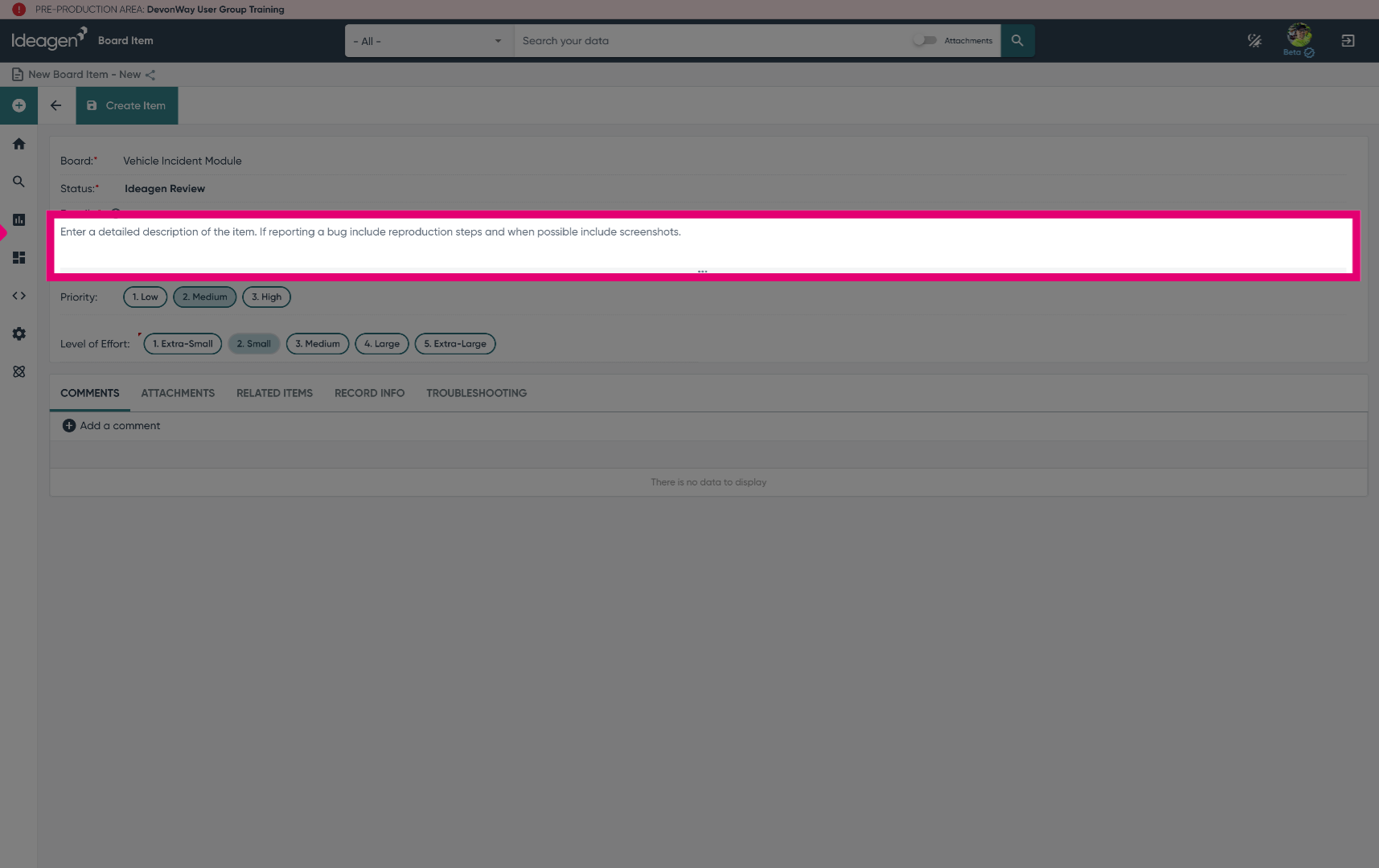
20. Enter Detailed Item Description
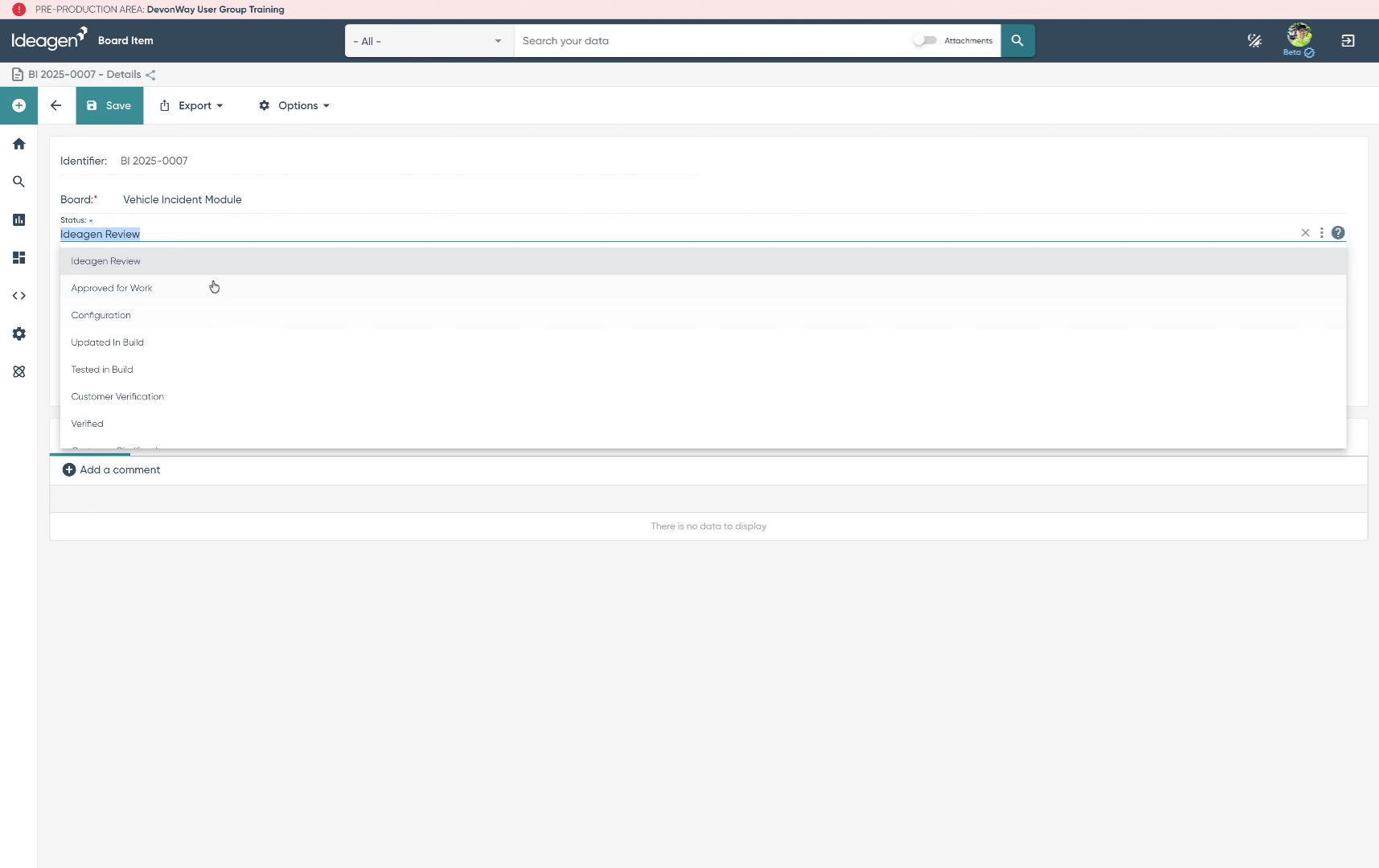
21. Understand Board Statuses
| Status | Description |
|---|---|
| Ideagen Review | The item has been entered on the board and the Ideagen team will review the request. |
| Configuration | The item is actively being configured in the build area. |
| Updated In Build | Configuration work is done in the build area; the item is ready to be tested. |
| Tested in Build | The item has been tested in the build area and is ready to be promoted to the test area. |
| Customer Verification | The item has been moved into the test area and is waiting for the customer to review the configuration changes. |
| Verified | The item has been verified in the customer test area and is complete. Board administrators can reopen verified items. |
| Customer Clarification | The item is NOT complete but requires the customer to provide clarification, use comments to track updates. |
| Acknowledged, Not Approved for Work | The item is being tracked but will not be completed at this time. Board administrators can reopen these items. |
| Acknowledged - Pending Implementation | The item is being tracked but may require work outside the project scope to complete. Board administrators can reopen these items. |
22. The "Verified" Status Indicates Completion
23. Access Board Dashboards